
Pick the display that fits your room.
Same dashboard, same Google Workspace or Microsoft 365 sync, same pricing. The only difference is what the status shows up on.
Lobby is the software. You bring the screen, and there are only really three kinds: a purpose-built e-ink panel by the door, a tablet or TV you mount on the wall, or any spare screen you already own running the display in a browser. You can mix all three across an office, and every one of them counts the same way on your plan. Lobby sells no hardware and marks up no devices, so whatever you buy, you buy at cost and own outright.
Whichever screen you choose, it shows the same live status, read from the Google Workspace or Microsoft 365 room calendars you already run with read-only access. Both platforms are fully supported today, so the sign by the door always matches the calendar people book in.
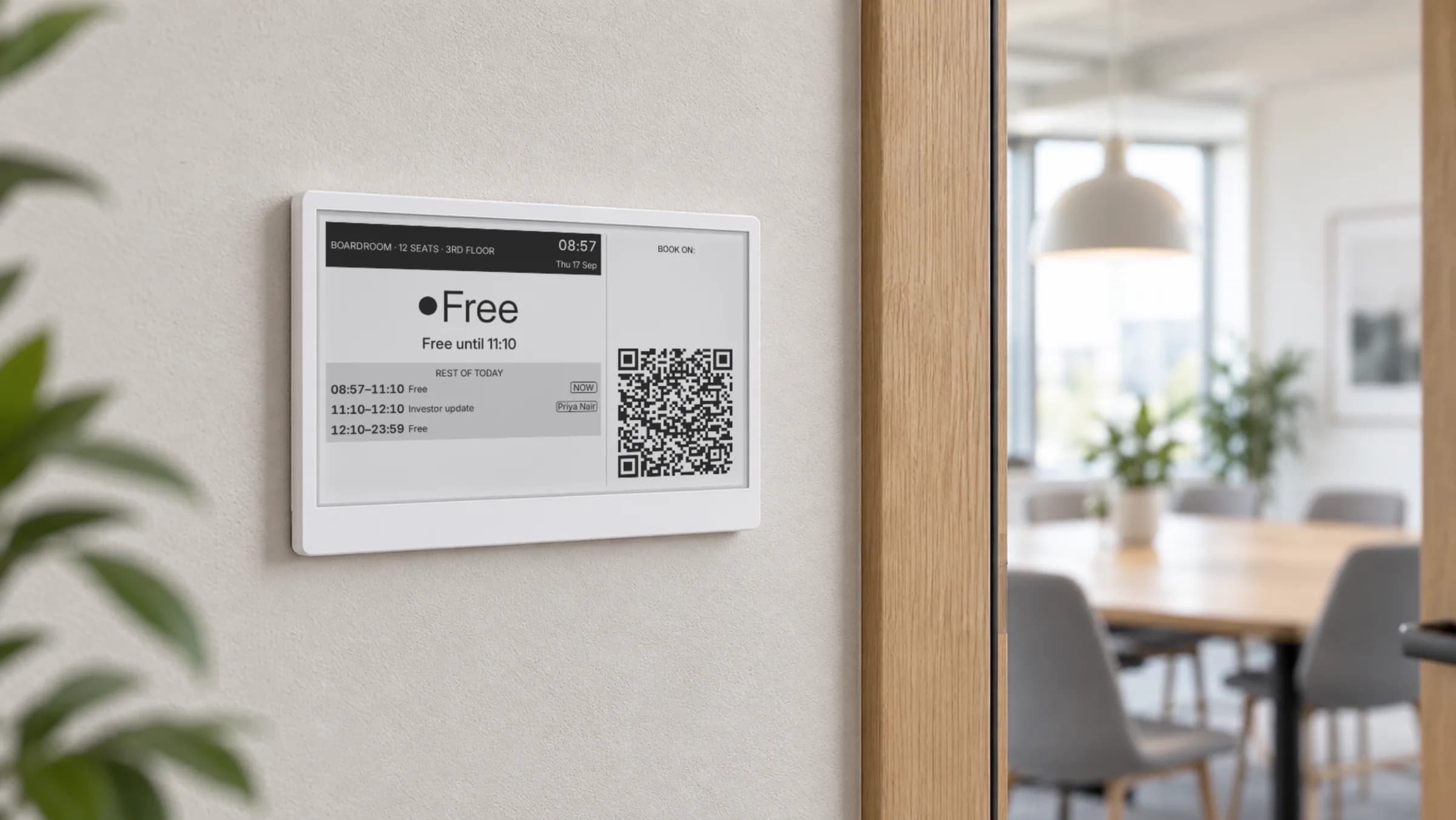
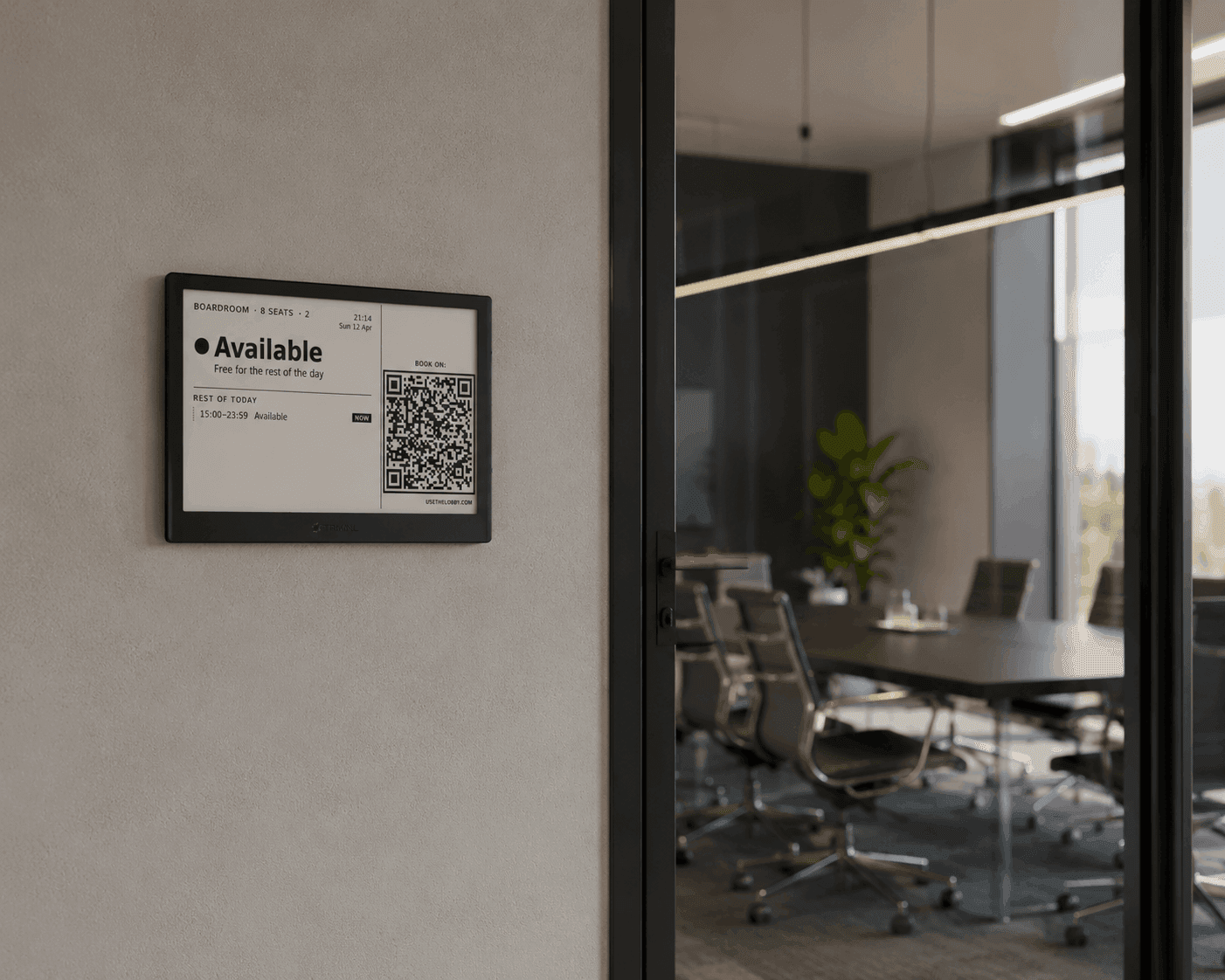
Paper-like display, months per charge, readable from across the corridor.
Our pick: Seeed reTerminal E1001. TRMNL devices work too.
- ✓ 7.5" e-ink screen: zero glare, zero backlight
- ✓ 3–6 months on a single charge
- ✓ Wall or magnetic mounting — free bracket designs in our mount guide
- ✓ Battery level monitoring in the dashboard
- ✓ Open-source hardware you own outright
- ✓ Same dashboard as virtual displays
Lobby doesn’t sell hardware. Compare e-ink displays →
Mount it once and forget it’s there.
The Seeed reTerminal E1001 is a 7.5-inch monochrome e-paper screen — 800×480, paper-white, with no glare and no backlight to wash out in a sunny corridor. Because e-ink only draws power when the picture changes, and Lobby only redraws it when a booking starts or ends, a single USB-C charge lasts months. There is no cable to route through the wall and nothing to plug in at the door.
It joins the office over standard 2.4 GHz Wi-Fi and only ever talks outbound over HTTPS, so it drops onto a normal network without a new VLAN or firewall exception. Mount it with a wall bracket, a no-drill magnetic plate, or a free 3D-printable design from our mount guide — on drywall, glass or a partition. If the Wi-Fi drops, the panel keeps showing the last schedule it had and resyncs on its own when the network is back.
Already have a screen? Use it.
Lobby runs in any modern browser. If it can load a webpage, it can be a Lobby display. No hardware to buy, no shipping, no pairing code.
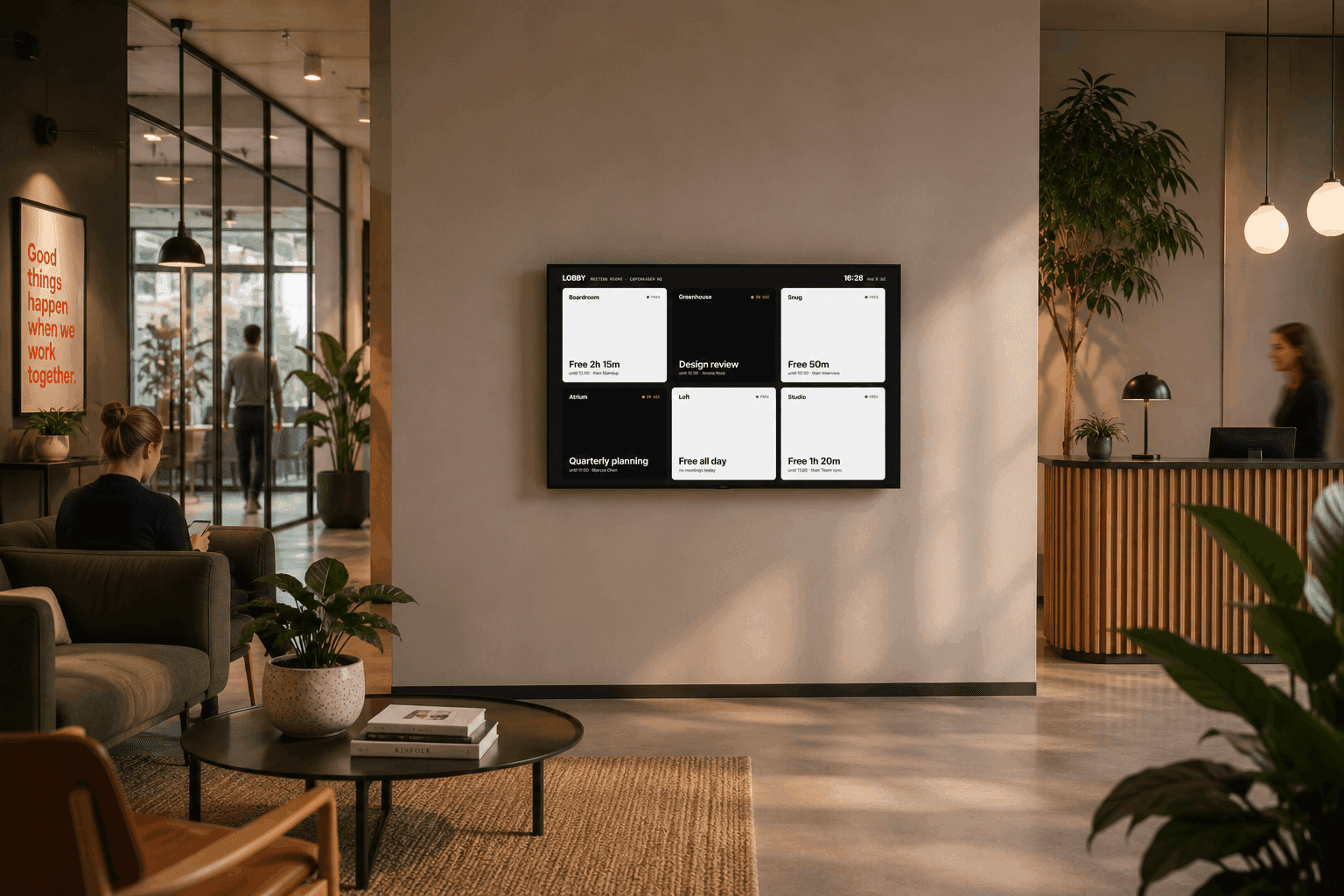
A virtual display shows exactly the same room view as the e-ink panel and updates in real time, the moment a booking changes. Open the display URL from your dashboard, put the device in kiosk or guided-access mode so it stays on that one page, and mount it wherever people look for the room. A tablet gives you full colour and touch by the door; a TV is the natural home for a whole-floor overview in the lobby or kitchen.
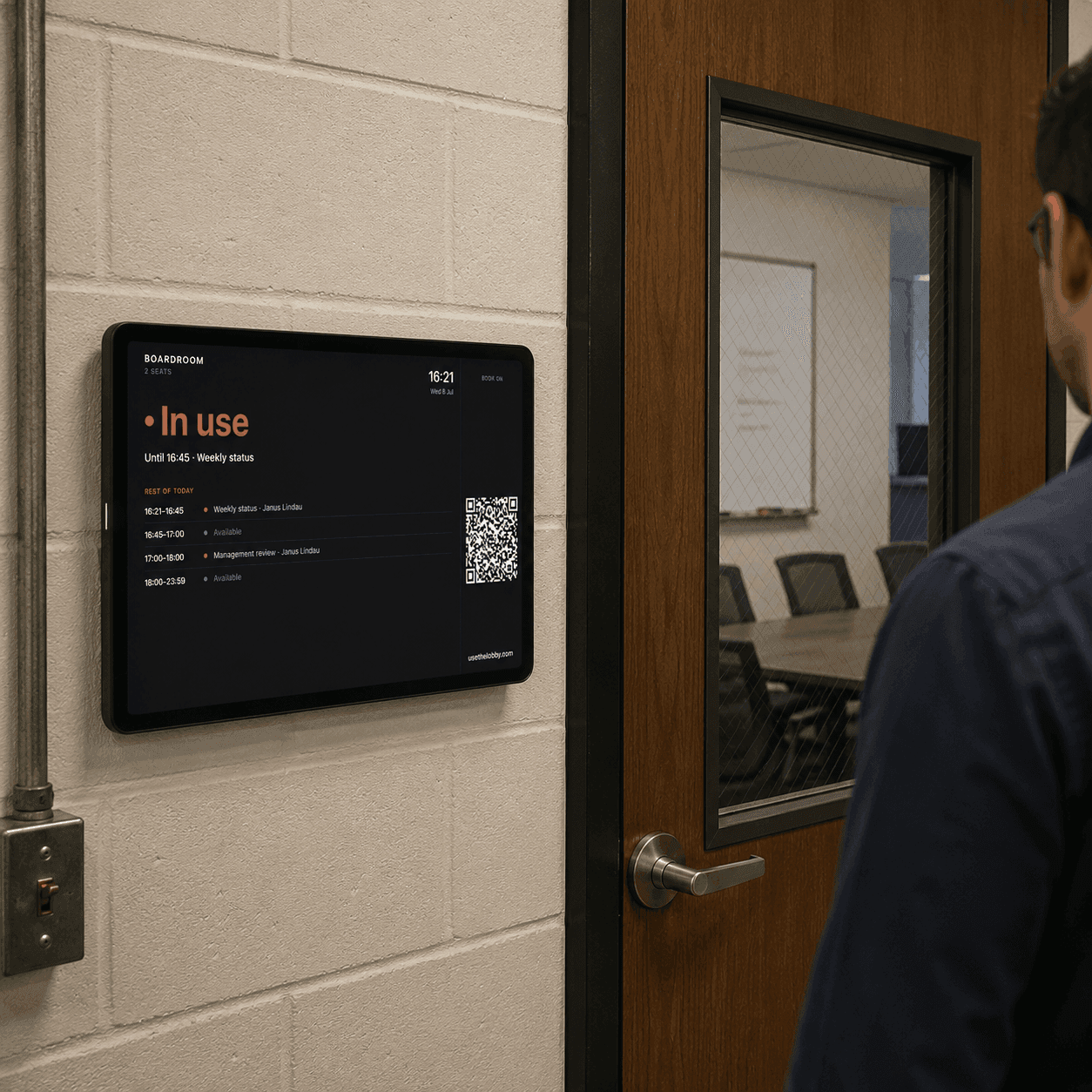
iPad / iOS tablet
Mount by the door, run Lobby in Safari or a kiosk app.
Android tablet
Any model with a current Chrome browser.
Smart TV
Any TV with a web browser. Great for the room overview in a lobby.
Old laptop / Chromebook
Give a spare laptop a second life as a display.
Touchscreen PC / kiosk
Point it at the display URL and lock it down.
Spare Android or iOS phone
A “booked / free” sign nobody has to replace.
Virtual displays count toward your plan the same way physical ones do. Up to 3 active displays are free forever.
Which display for which room?
For a door with no power nearby, or a bright corridor where a backlit screen would wash out, an e-ink panel is the easiest answer: buy it once from $69, charge it a few times a year, and mount it flat to the wall. For a room where you want colour, touch, or a screen you already keep in a drawer, a tablet in a wall or glass mount is ideal. For the lobby, the kitchen, or a busy corridor, put the room overview on a TV you already own so people can read every room at a glance without walking the loop.
Nothing is locked in. Start with one screen on the room people argue over most, add more as you grow, and swap between e-ink, a tablet and a TV per room whenever it suits you. The plan never changes with the hardware: up to three displays free, then one flat monthly fee for as many as you like. If you want the bigger picture before choosing a meeting room display, the full guide compares the formats and how they fit each room.
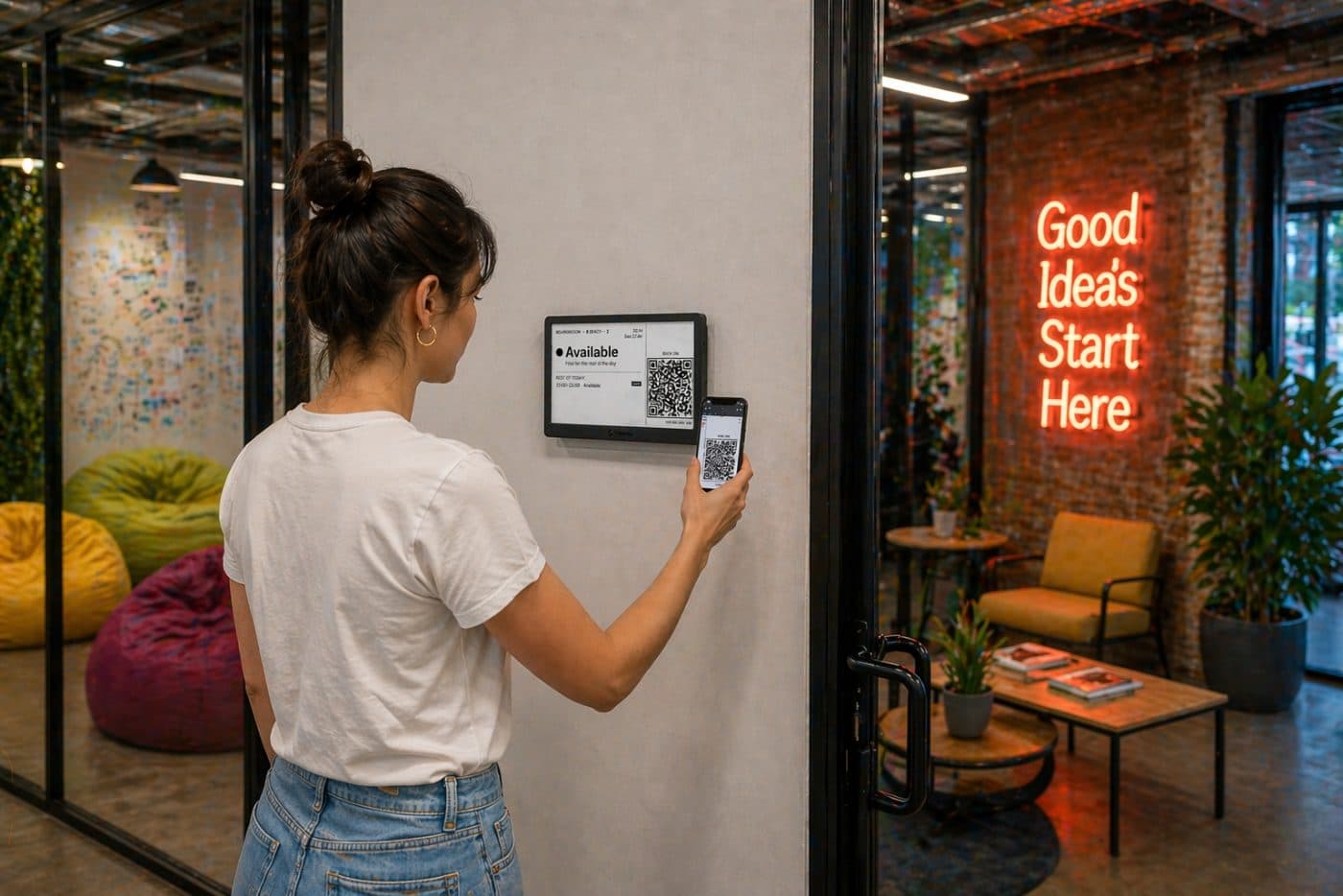
Most offices mix.
Physical e-ink beside the busy meeting rooms, a tablet on the wall outside the phone booth, and a room overview on the lobby TV. They all read from the same calendar, show in the same dashboard, and cost the same flat price whether you run three displays or a hundred.
Whichever you choose, booking works the same way. Scan the QR code on the display and the normal Google Calendar or Microsoft 365 (Outlook) booking screen opens with the room already selected, so there is nothing new for anyone to learn. The screen shows the calendar; it never becomes a second place to manage meetings.
See the mount guide for fitting a panel, or the pricing page for how displays count toward your plan.
Ready to try Lobby?
Free forever for up to 3 displays. No credit card.
Create free account →Free forever up to 3 displays · No credit card · Cancel anytime