
Manage every room from one dashboard.
Connect Google Workspace or Microsoft 365. Pair physical displays to rooms. Open a virtual display link for any screen you already own. Pick which rooms appear on your overview display. See battery and sync status at a glance.
No credit card · 3 displays free forever · 10-min setup
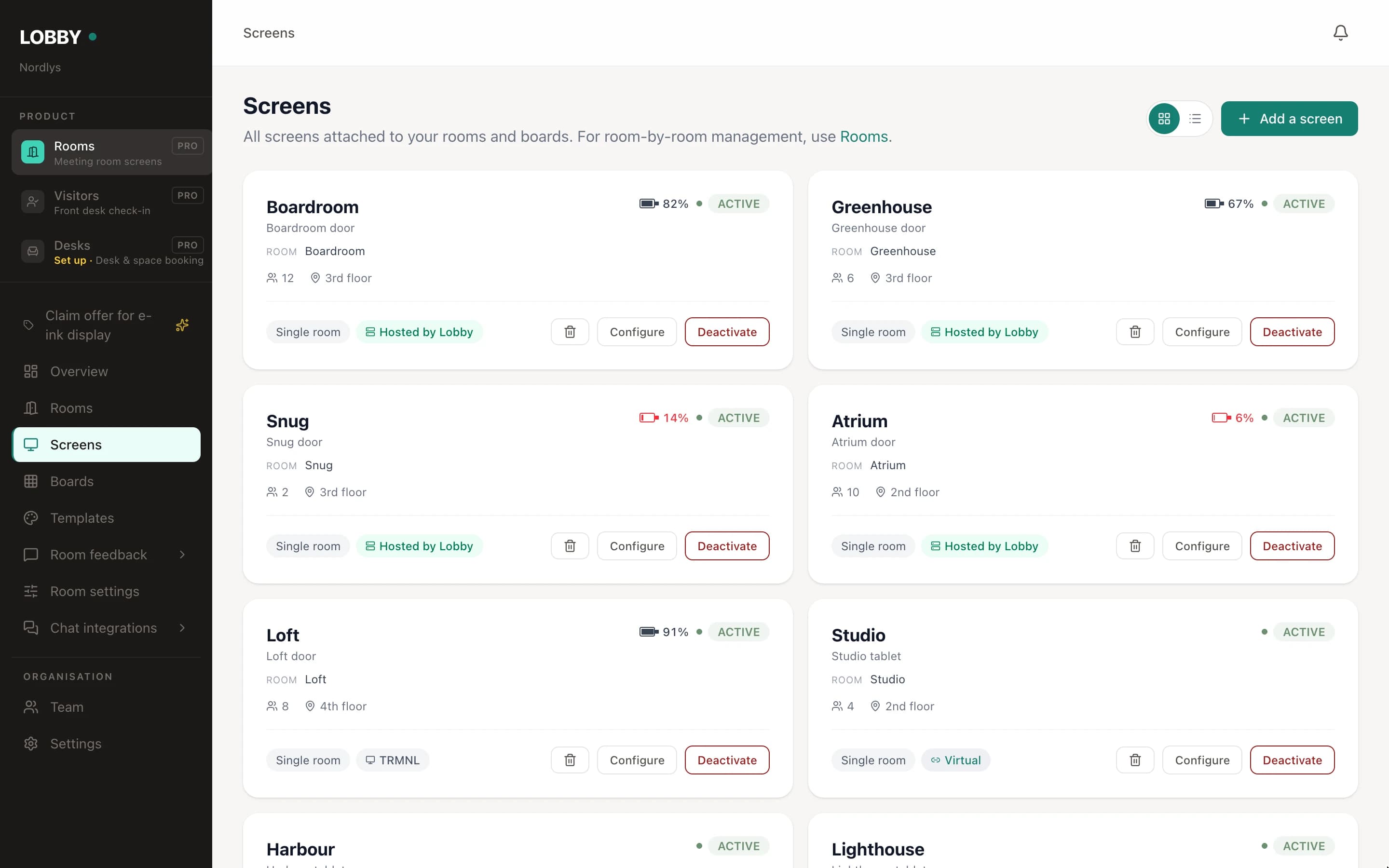
Manage every room from one dashboard.
The Lobby dashboard at app.usethelobby.com is where everything happens. Connect Google Workspace or Microsoft 365. Pair physical displays to rooms. Open a virtual display link for any screen you already own. Pick which rooms appear on your overview display. See battery and sync status at a glance. It’s simple enough that your office manager can run it without training.
- ✓ Connect and disconnect Google Workspace or Microsoft 365 room calendars
- ✓ Pair physical e-ink displays to rooms in one click
- ✓ Open a secure virtual display URL for any browser, TV, or tablet
- ✓ Configure a room overview: pick rooms, sort order, grid size
- ✓ See battery level and last-sync time for every display
- ✓ Invite colleagues as admins, members, viewers or employees, per product
- ✓ Usage analytics: peak hours, room booking rates, per-room trends
- ✓ Real-time sync with every calendar change, no manual refresh
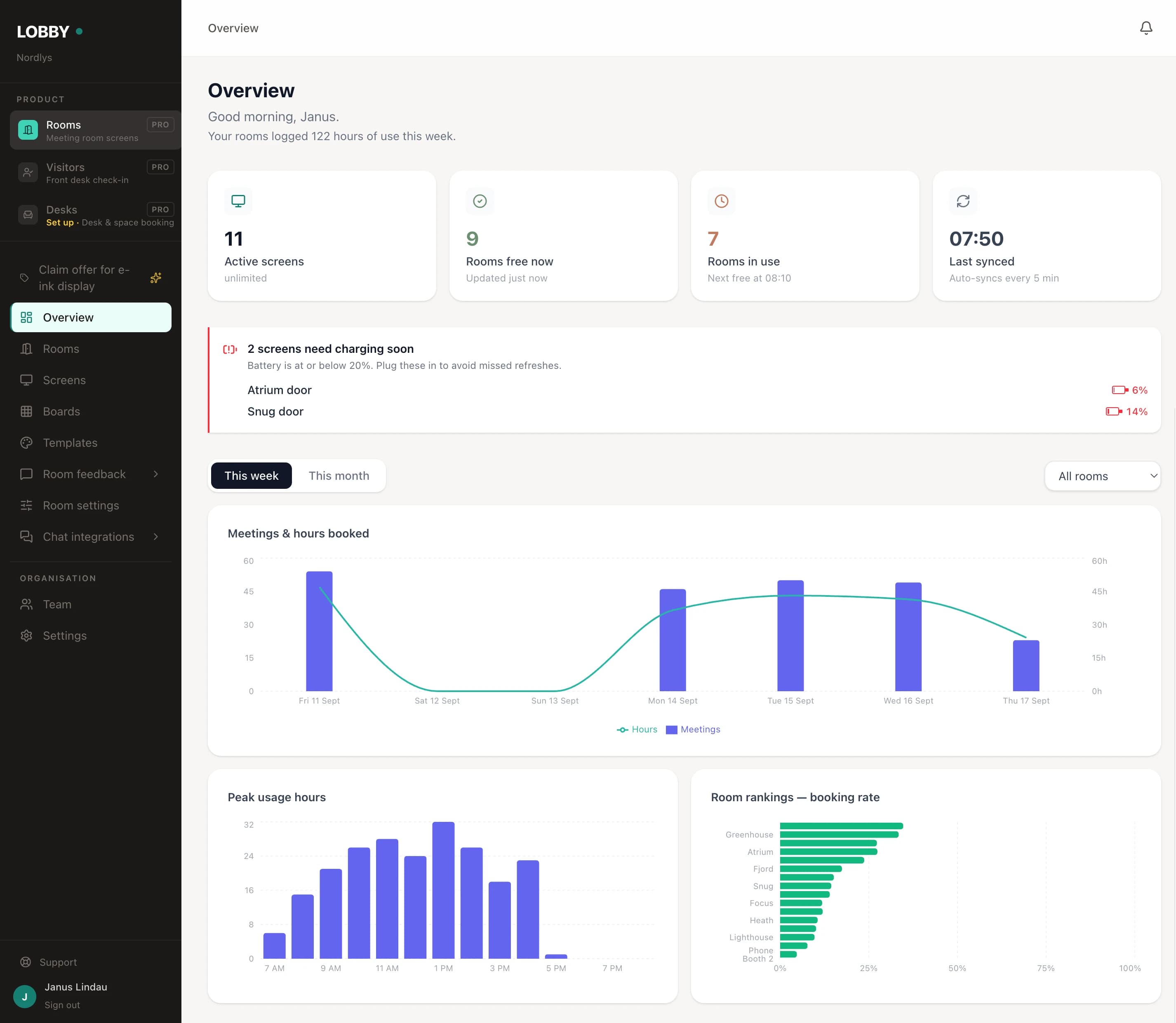
Per-room booking rates and peak-hours insight, included on every plan.
The wrong calendar address fails silently. Lobby checks it before you save.
The most common way a room screen goes wrong is also the quietest: a mistyped calendar address, and the screen simply never shows a booking. When you add a room, Lobby finds your existing room calendars automatically. If you enter one by hand, Lobby tests the address before saving and tells you in plain words what to fix.
- ✓ Finds your Google Workspace resources and Microsoft 365 room mailboxes automatically
- ✓ Step-by-step help for finding a room's calendar address, right in the form
- ✓ "Check & create room" tests the address before anything is saved
- ✓ No admin access? Ask IT for the room's calendar email. That's all Lobby needs
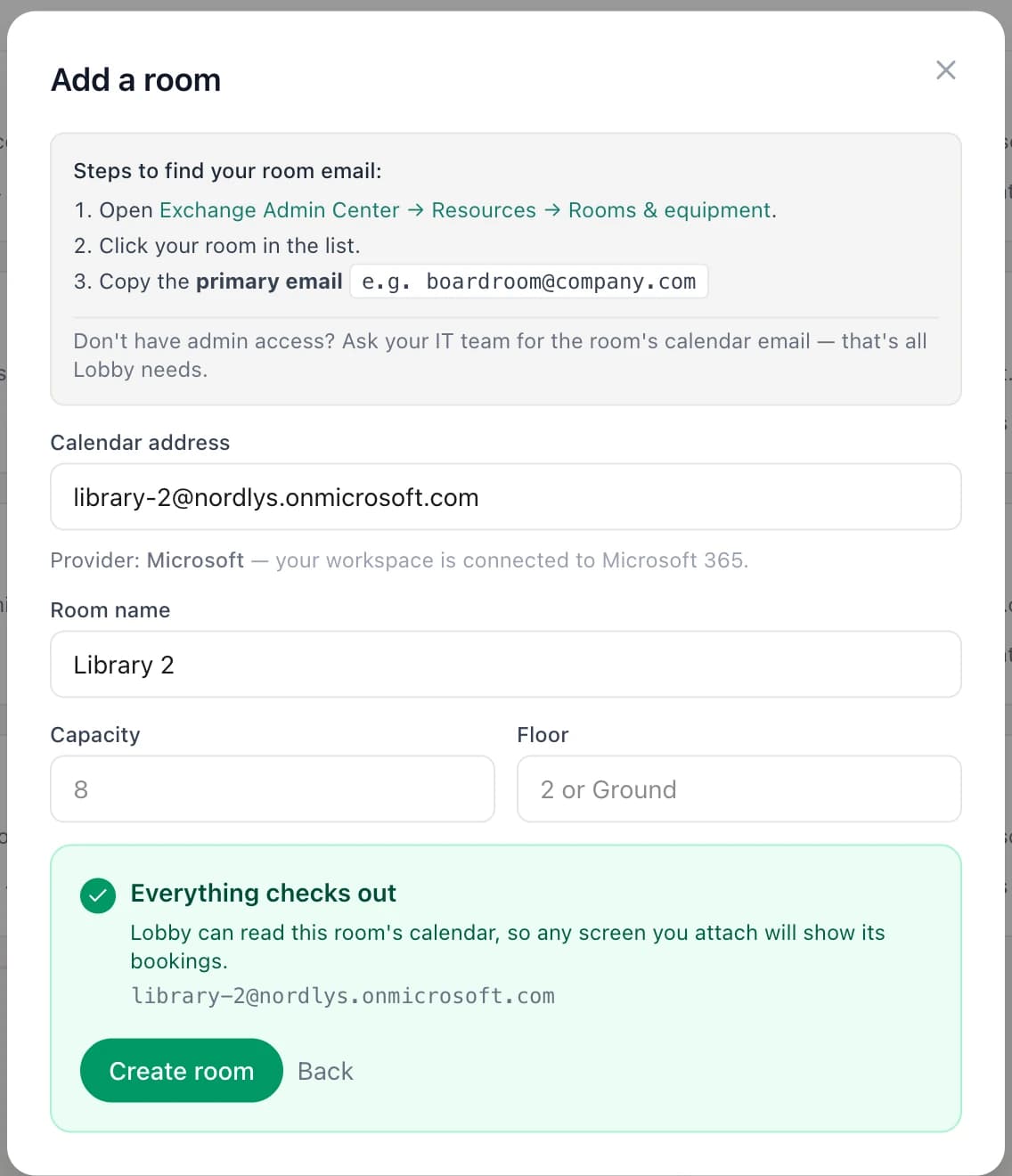
- 1Where to find the address
- 2Checked before anything is saved
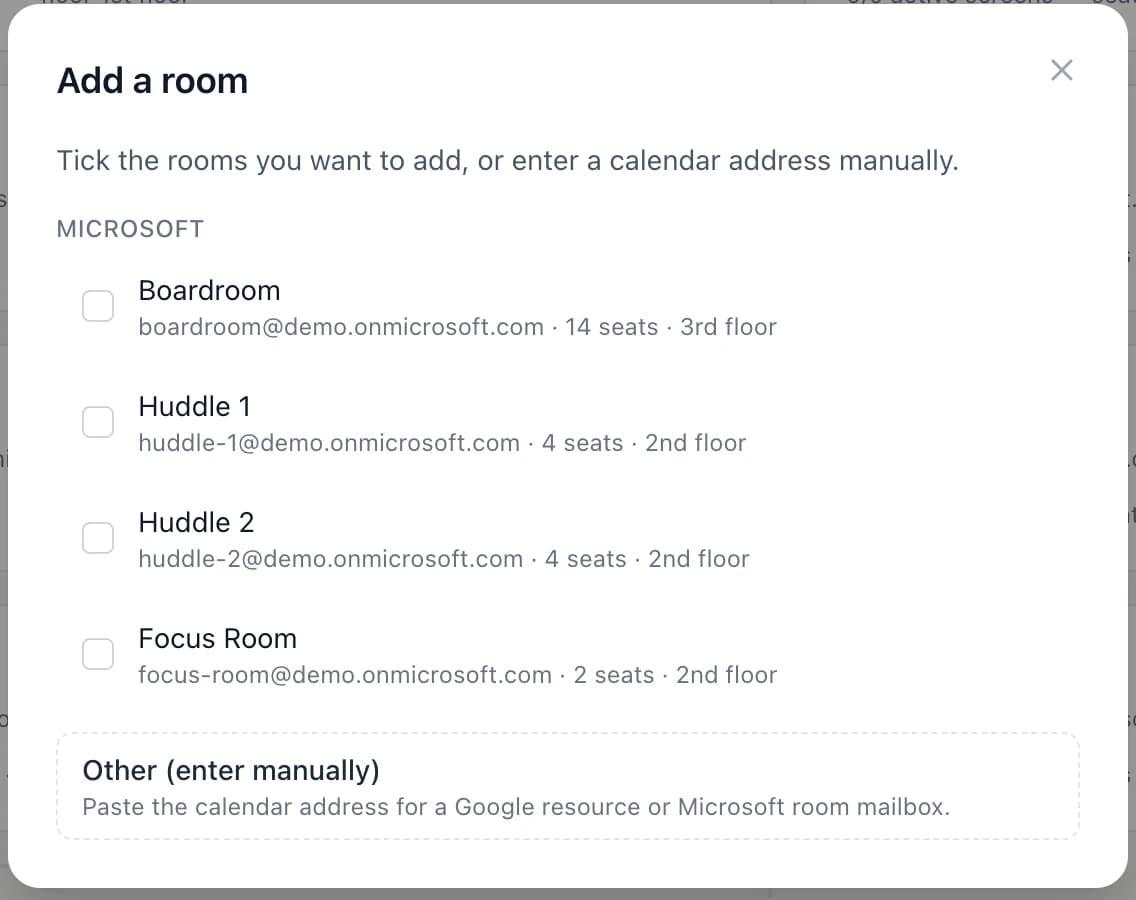
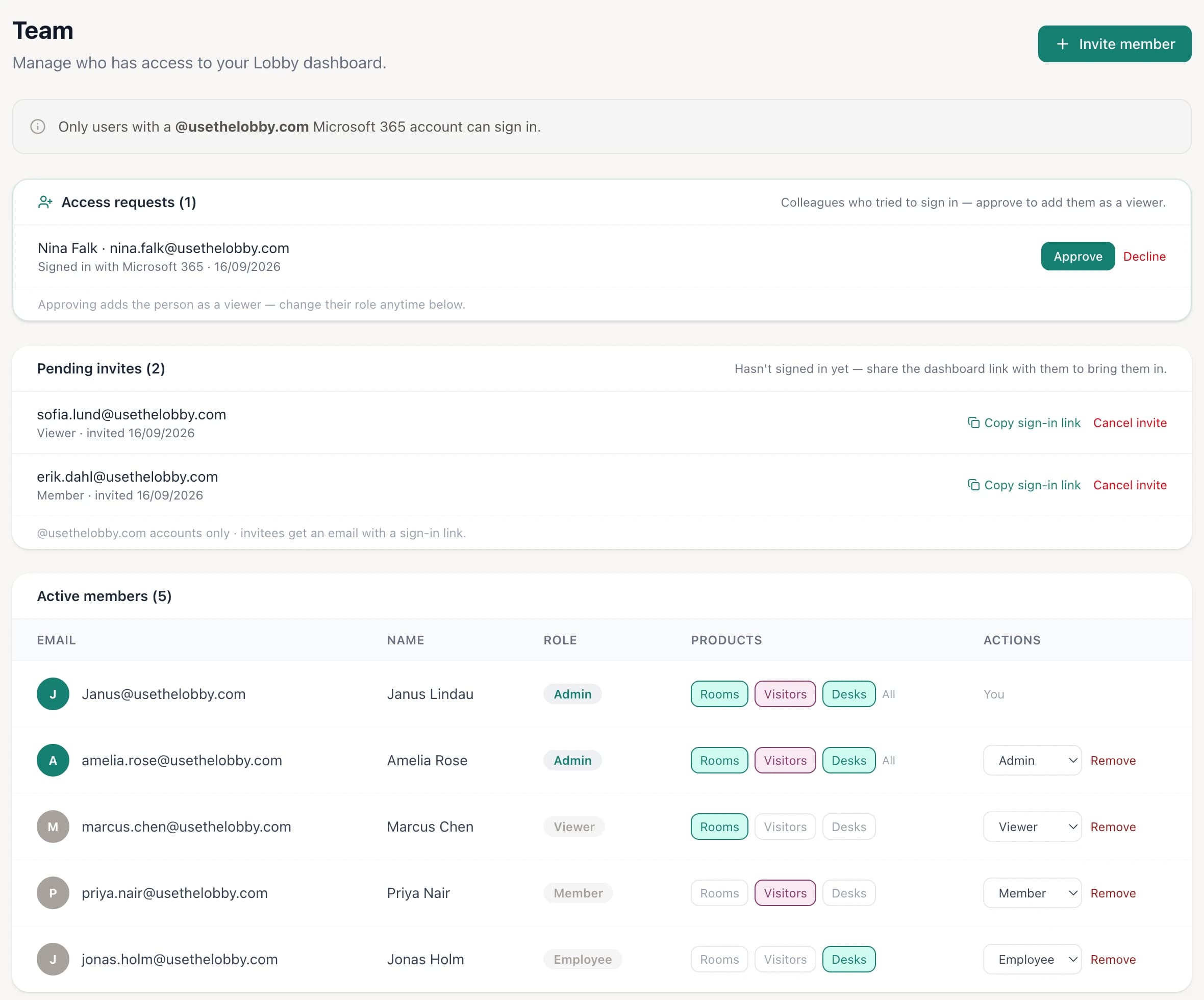
The receptionist doesn’t get the billing page.
Invite colleagues by email, approve people who sign in with your company domain, and choose which Lobby products each person can open. Facilities gets Rooms; reception gets Visitors; nobody gets more than they need.
- ✓ Roles: Admin, Member, Viewer and Employee
- ✓ Access per product: Rooms, Visitors, Desks
- ✓ Approve or decline colleagues who sign in with your work domain
- ✓ Only accounts on your company domain can join
Ten minutes from now, your team will know which room is free.
Free forever for up to 3 displays. Works with your existing Google Workspace or Microsoft 365 calendar. No credit card, no sales call, no IT project.
Get started free →Free forever up to 3 displays · No credit card · Cancel anytime