
Your meeting titles stay in Lobby's own EU infrastructure.
Every Lobby plan keeps your data in the EU. Lobby-hosted e-ink screens on Pro Unlimited go one step further: Lobby renders every e-ink image itself and serves it from its own servers in the EU, so the panel on your wall talks only to Lobby. No device vendor's cloud in the middle, no copy of your calendar anywhere else.
Pro Unlimited · Unlimited rooms and displays · Flat $60/month billed yearly
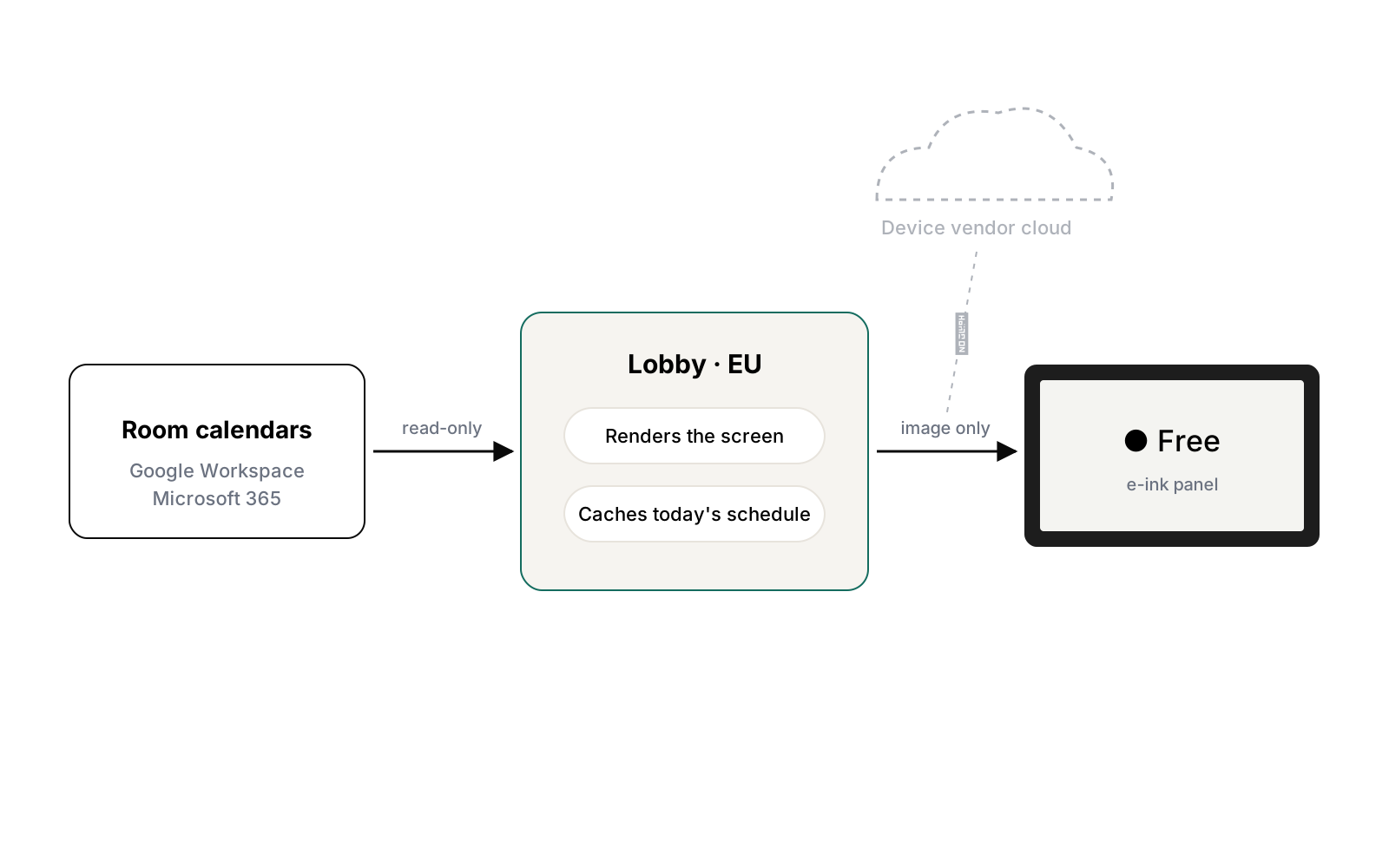
Same panel on the wall. A shorter path for your data.
| Comparison | Standard e-ink (TRMNL cloud) | Lobby-hosted screenPro |
|---|---|---|
| Who renders the screen image | TRMNL's platform | Lobby, in the EU |
| Where the image is served from | TRMNL's servers | Lobby's own servers |
| Meeting titles and room names pass through | Lobby and TRMNL | Lobby only |
| If an upstream service has an outage | Screen waits for the vendor | Screen keeps showing Lobby's cached schedule |
| Supported devices | TRMNL devices | Seeed reTerminal E1001 and TRMNL devices pointed at Lobby |
| Plan | All plans | Pro Unlimited |
For the tender that asks where the data goes.
A room display is a small thing that shows sensitive things: who is meeting whom, and when. Enterprises, public bodies and anyone with a data-residency rule get asked to list every processor that touches that data. Lobby-hosted screens take a whole company off that list.
- ✓ Fewer sub-processors to declare in your records of processing
- ✓ Room names and meeting titles never leave Lobby's own EU infrastructure
- ✓ Read-only calendar access, encrypted OAuth tokens, per-organisation isolation
- ✓ Screens keep working from Lobby’s cache during an upstream outage
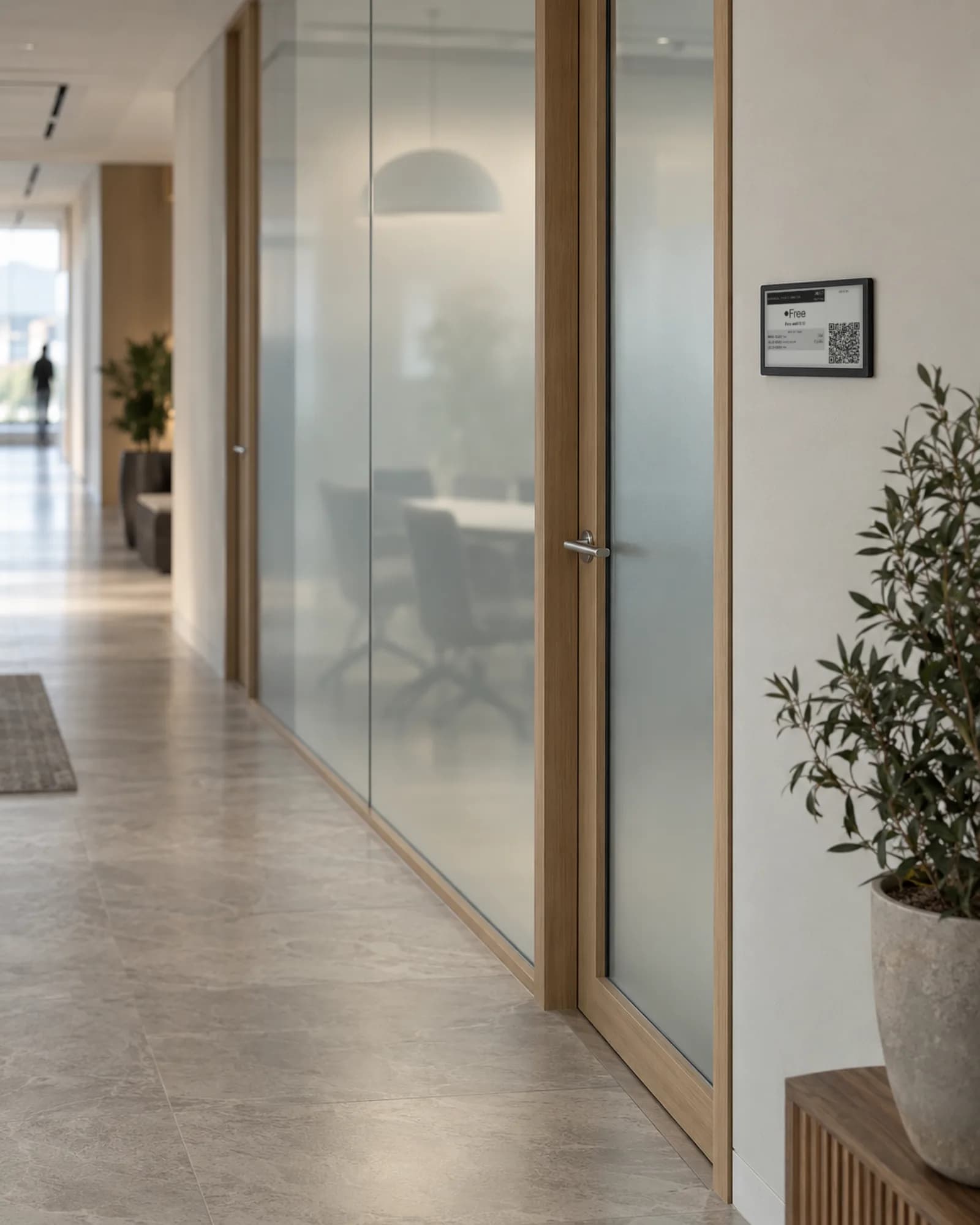
About two minutes per panel, once.
01
Flash once
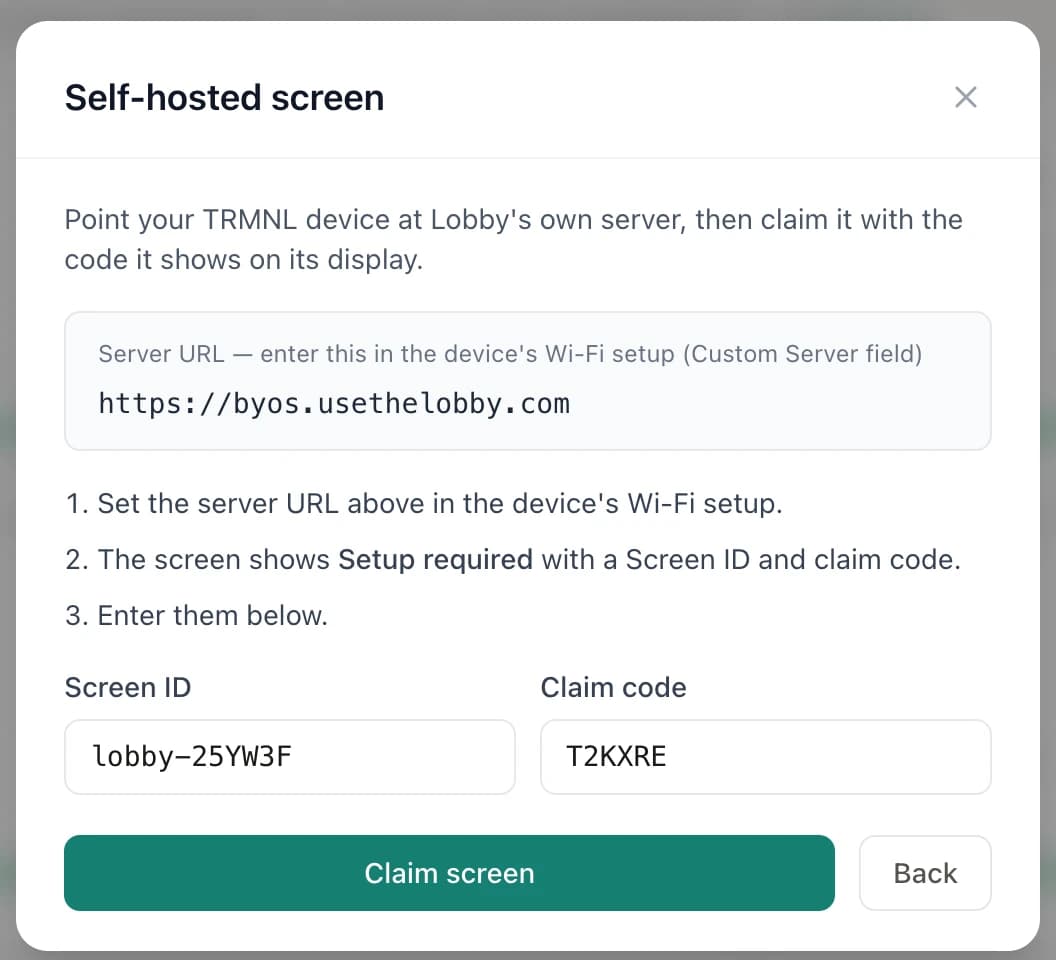
Install the e-ink firmware on the Seeed reTerminal E1001 over USB-C. TRMNL devices just need pointing at Lobby.
02
Point it at Lobby
On first boot, the panel connects to Lobby's display server instead of a vendor cloud.
03
Claim it
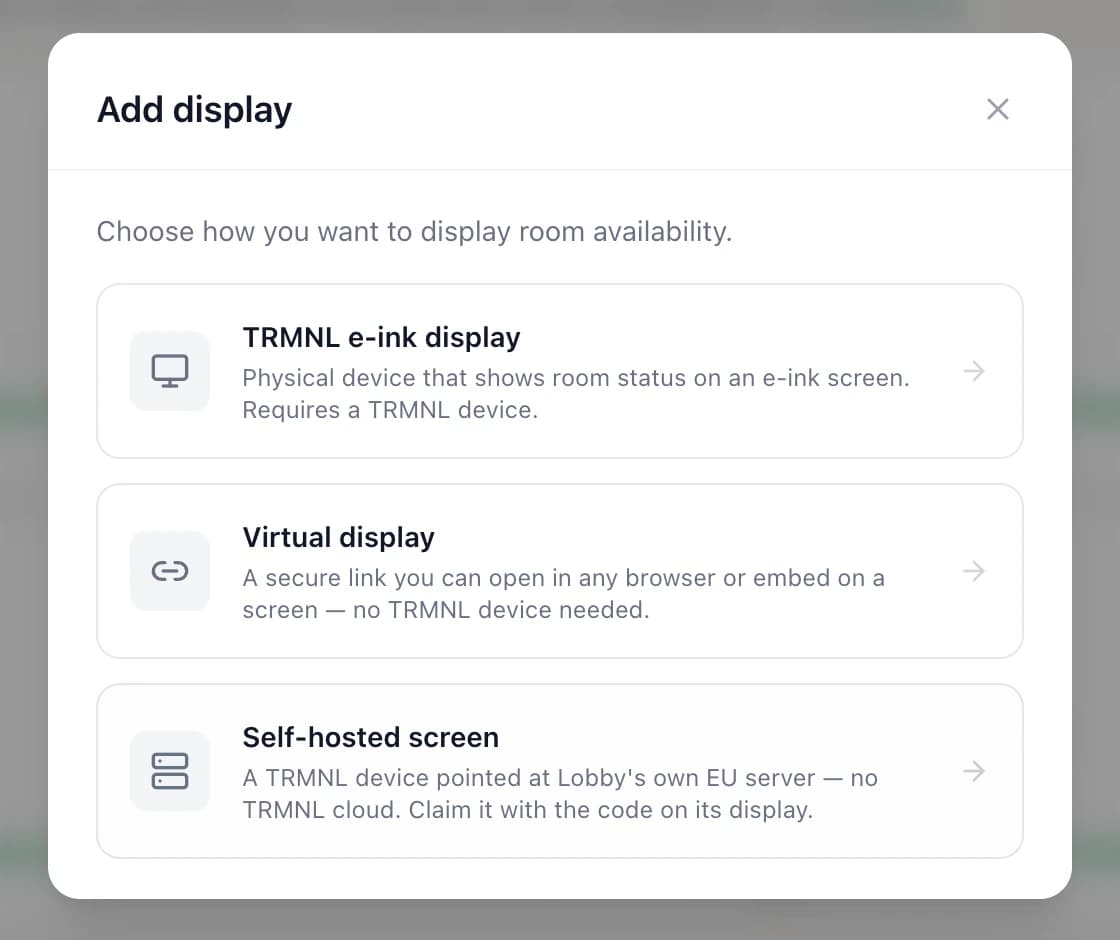
It shows a short code. In the dashboard, choose Add a screen > Self-hosted screen and type the code.
04
Assign a room
Pick the room or board. The panel shows live status on its next wake.
Questions about Lobby-hosted e-ink
Room screens your DPO can sign off on.
Start on Free with a virtual display, then upgrade to Pro Unlimited for Lobby-hosted e-ink.
Free forever up to 3 displays · No credit card · Cancel anytime
10 minutes from now, your team will know which room is free.
Connect Google Workspace or Microsoft 365 and go live on a screen you already own — or add an e-ink display.
Get started free →Free forever up to 3 displays · No credit card · Cancel anytime