
Works with Google Workspace & Microsoft 365
Meeting room displays that end the meeting-room chaos.
A meeting room display outside every door, showing free or busy in real time, synced to the calendar you already run.
Free up to 3 displays · No credit card needed · 10-min setup

What is a meeting room display?
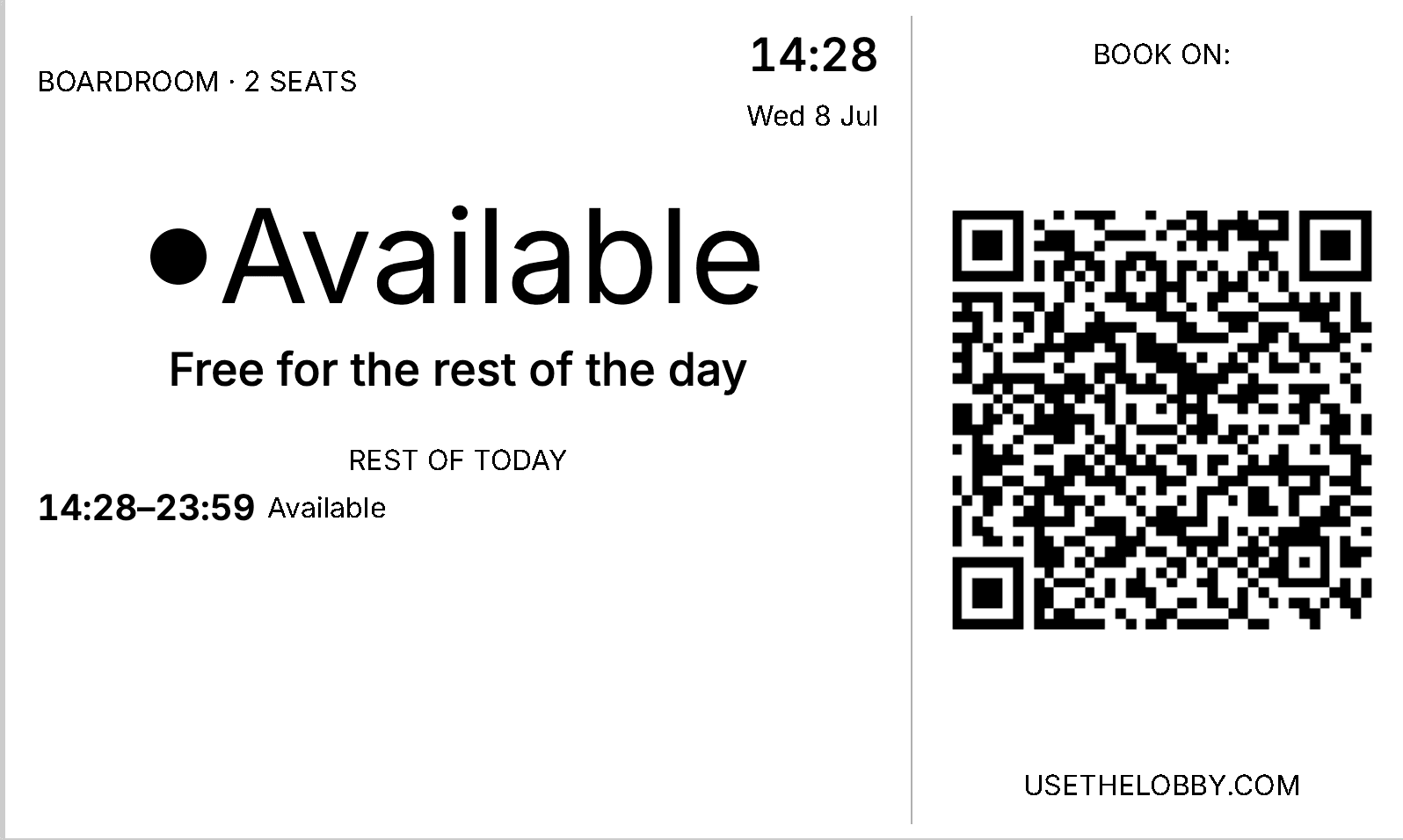
A meeting room display is a small screen mounted outside a meeting room that shows whether the room is free or busy right now, what is booked next, and lets people book the room on the spot. It updates live from the calendar you already use.
Most offices buy something far bigger than they need. The screen really has one job. It has to answer a single question from a few metres away, in a corridor, while someone is already late for a meeting.
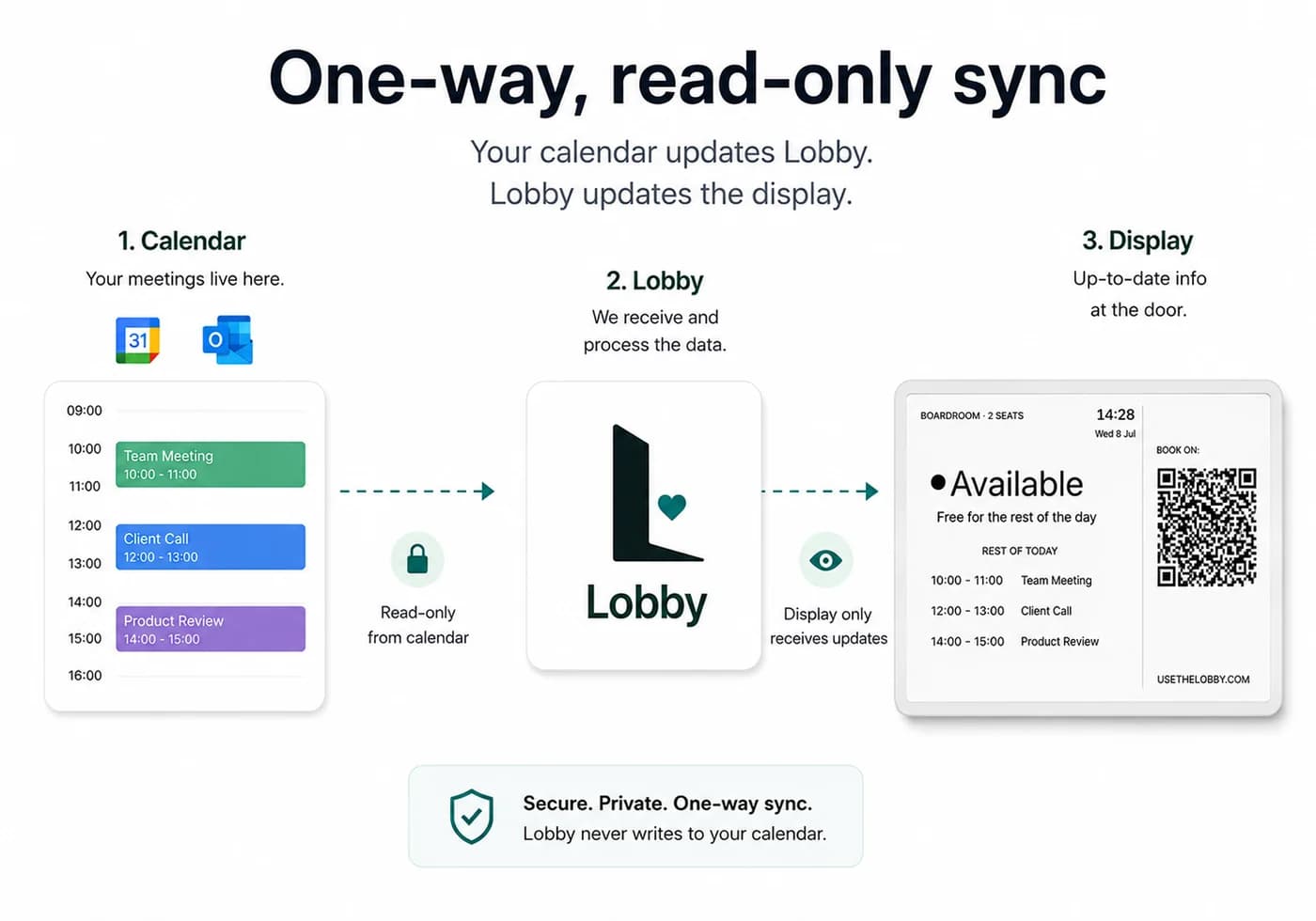
Each display is linked to a room in Google Workspace or Microsoft 365. When someone books that room in Google Calendar, Outlook or Microsoft Teams, a virtual display on a tablet or TV catches up within about 30 seconds, and an e-ink panel shows it on its next check-in. There is no second system to keep in step, because the calendar is the only one.
Hybrid work has made this harder. How full the office is changes from one day to the next, people book rooms from their phones between buildings, and the one place you can trust to show what is really going on is the door itself.
Conference room display or meeting room display — same thing
A conference room display and a meeting room display are the same product; the words just change by region. US offices tend to say conference room display, while teams in the UK and Europe usually say meeting room display. Lobby covers both, and the screen does the same job whichever name your office uses.
You will also see it called a room scheduling panel, a room booking display, or simply a door display. They all describe the same thing: a small screen mounted outside the room that reads free or busy straight from the calendar. Whether you are fitting out a single conference room or every meeting room on the floor, the setup is identical.
So if you have been searching for a conference room display, you are in the right place: Lobby is a meeting room display and a conference room panel in one, syncing the same live availability to e-ink, a tablet, or a TV.
The core promise
See room availability at a glance
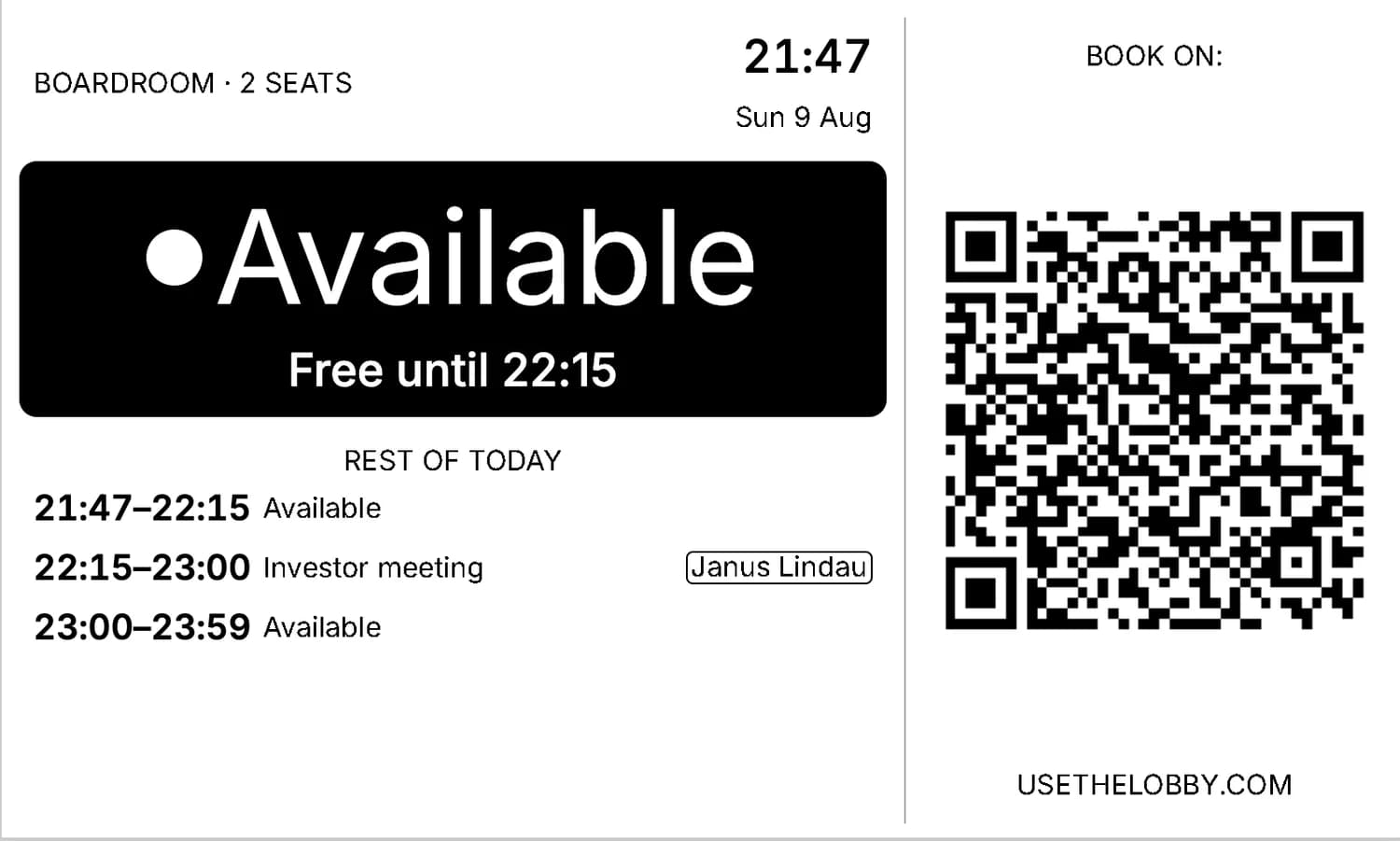
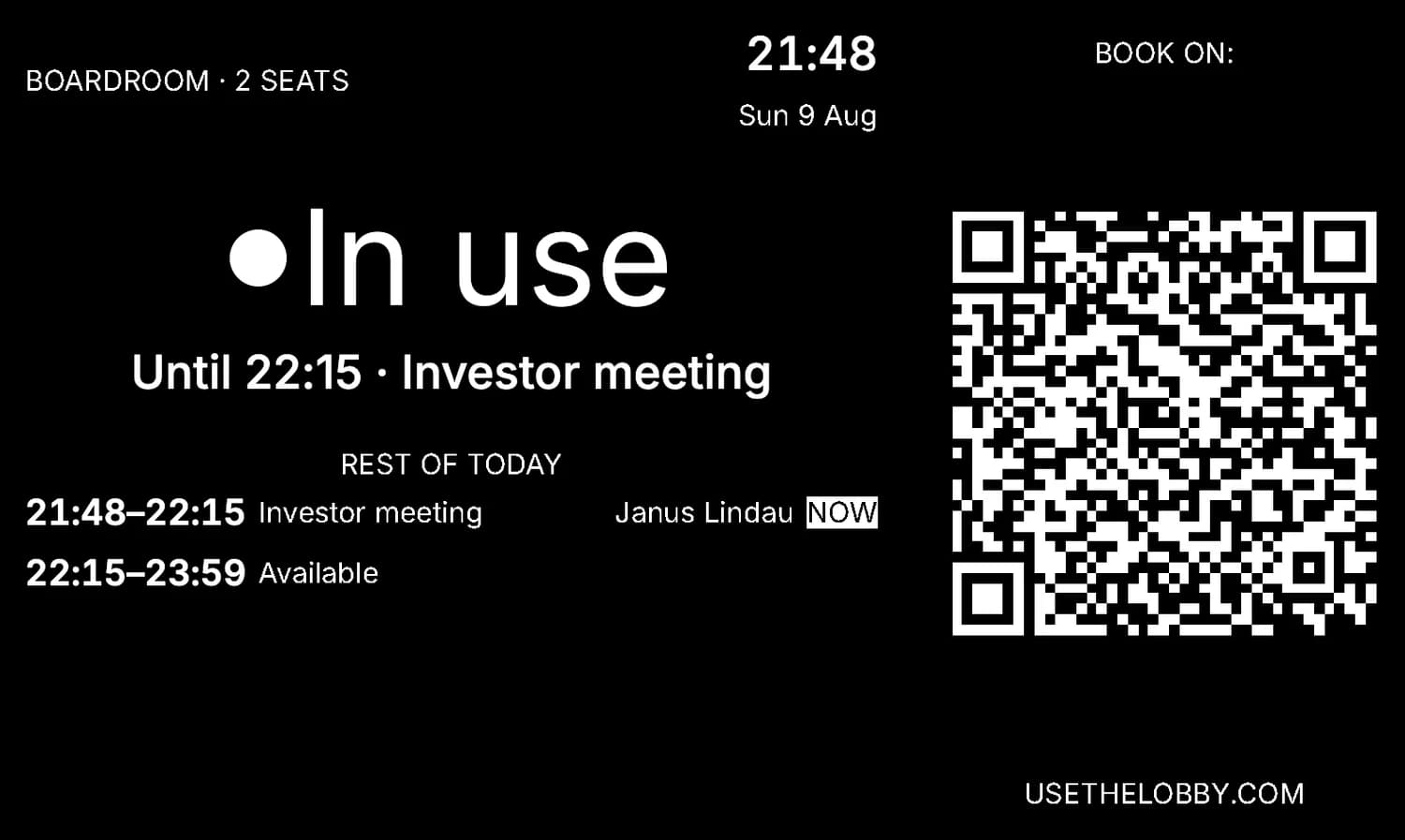
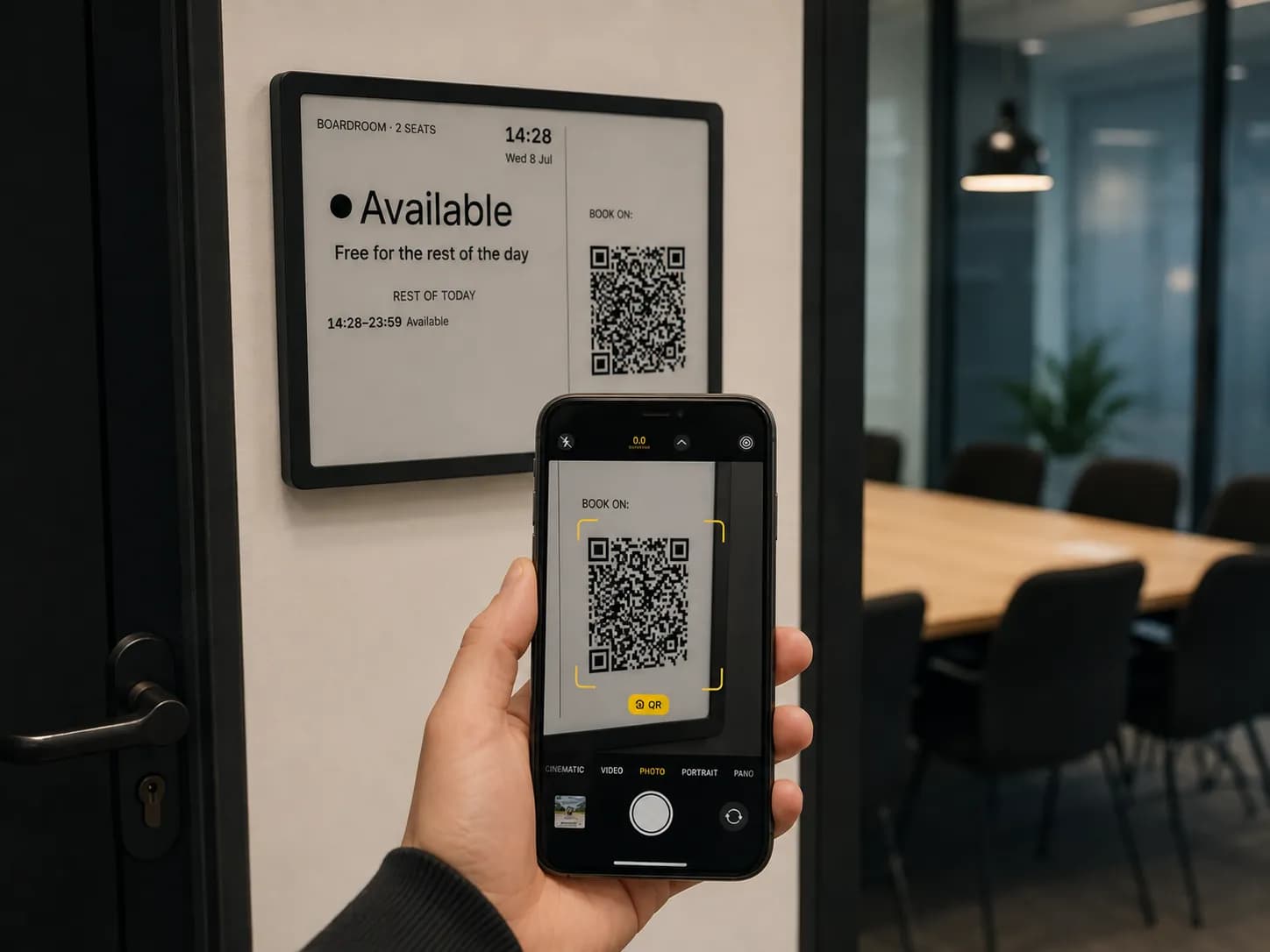
Walk up and you know straight away. A free room shows Available in large type, with the time it stays free before the next booking. A busy room shows In use, with the meeting title and when it finishes. You can read it from across the corridor without stopping to work anything out.
Book a free room by scanning the QR code
If the room is free, point your phone camera at the QR code on the display. It opens the normal booking screen in Google Calendar or Outlook, with that room already added as the resource. You book it the way you always book a meeting.
There is nothing new to learn. The display does not run its own booking flow. It hands you straight to the calendar you already use, with the room filled in, so there is no app to install and no account to set up.
The same goes for changing a meeting that already exists. Moving it, shortening it or cancelling it all happen in the calendar, where the organiser and the guests already are, not on the screen by the door.
Integrations
Works with the calendar you already run
Lobby reads the room calendars you already have, with read-only access. There is nothing to migrate and no second booking system to run, so nobody ends up keeping rooms up to date in two places.
Google Workspace
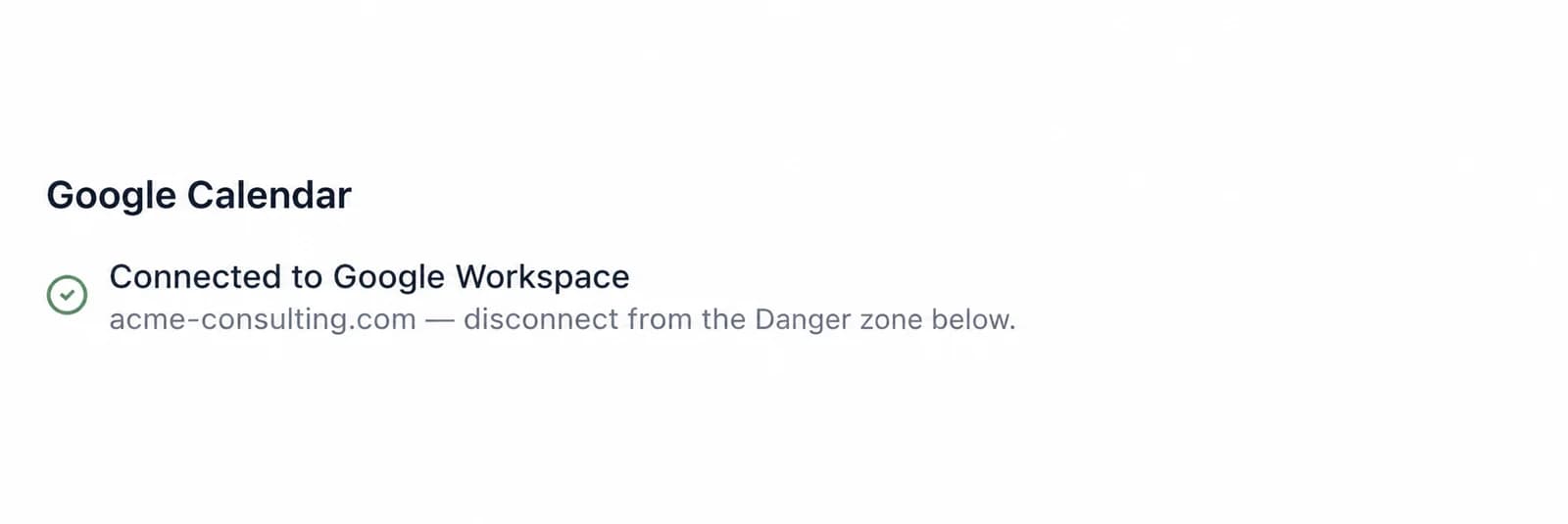
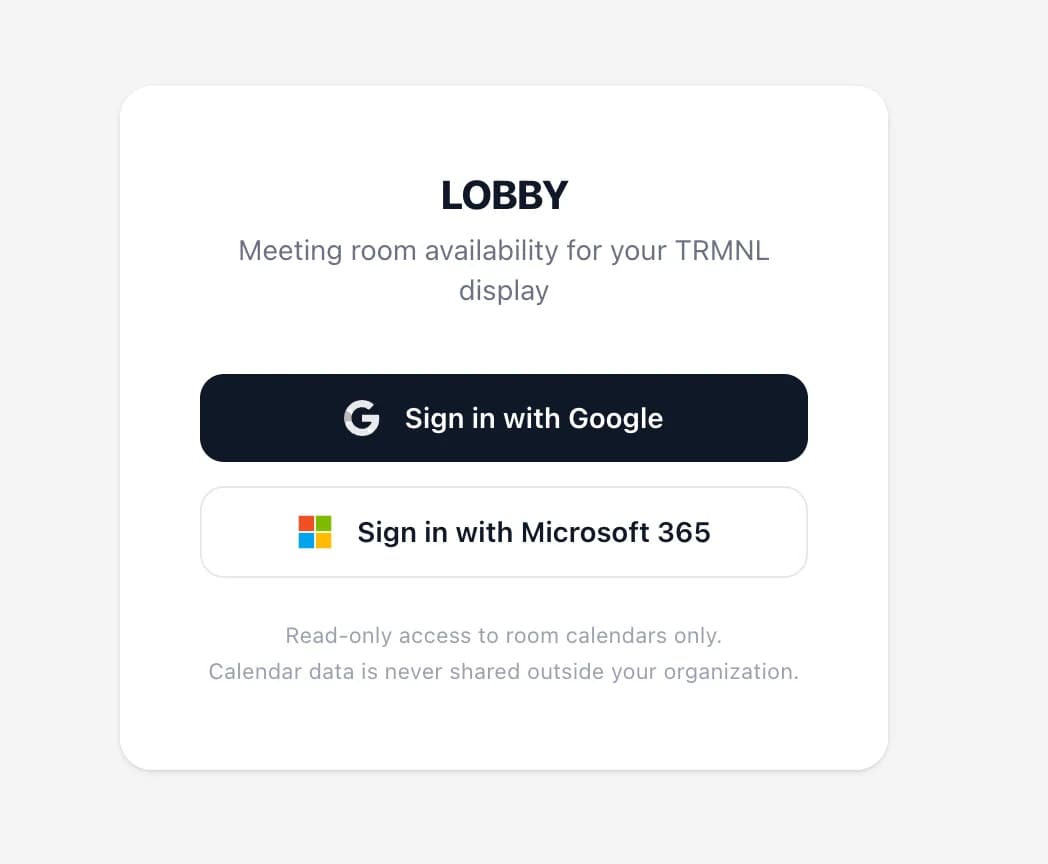
LiveSign in with Google, authorise read-only calendar access, and your Google Calendar room resources appear as rooms you can put on a display. Changes made anywhere in Workspace reach a virtual display within about 30 seconds, and an e-ink panel on its next check-in.
Microsoft 365
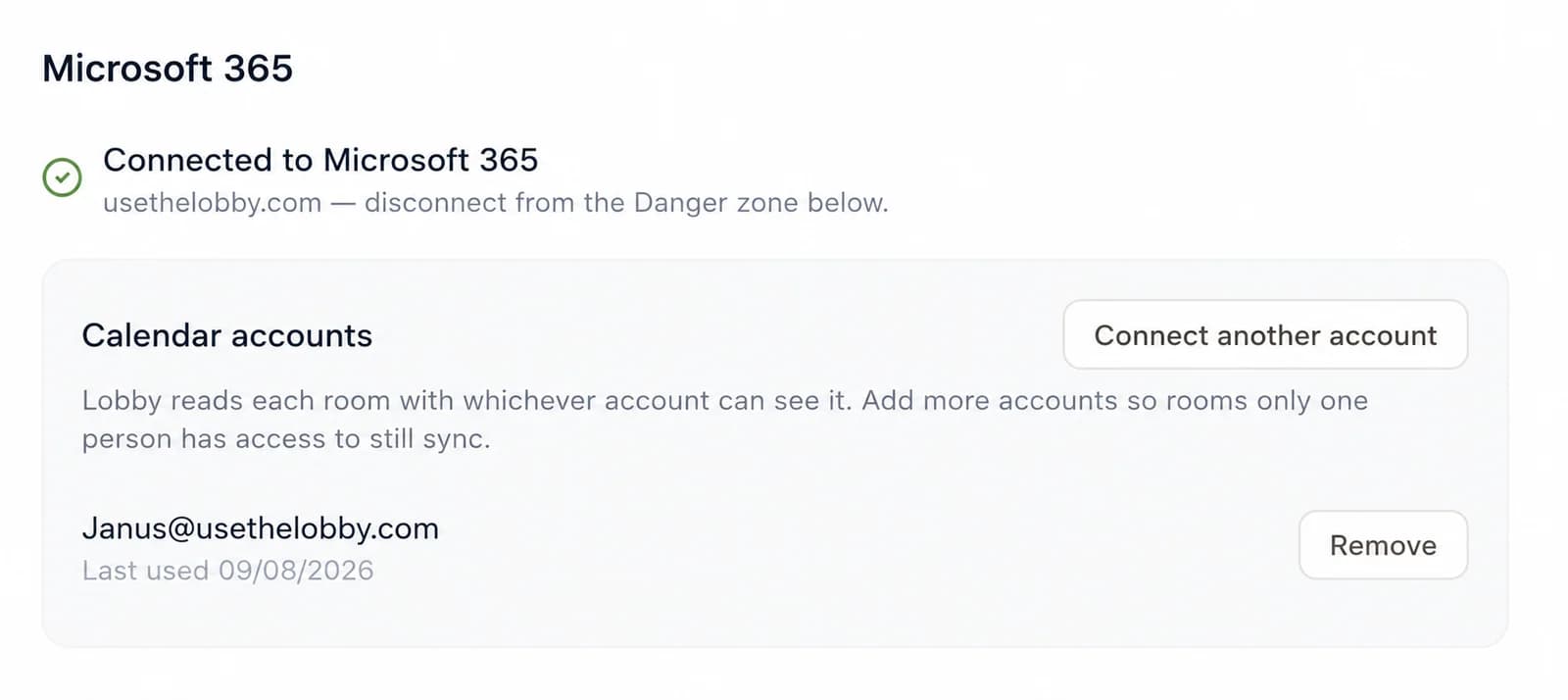
LiveSign in with Microsoft 365 and Lobby reads your Outlook and Exchange room mailboxes, including rooms booked from Microsoft Teams, with read-only access. Changes reach a virtual display within about 30 seconds and an e-ink panel on its next check-in, exactly like Google Workspace.
One meeting room display per door, one board for the whole floor
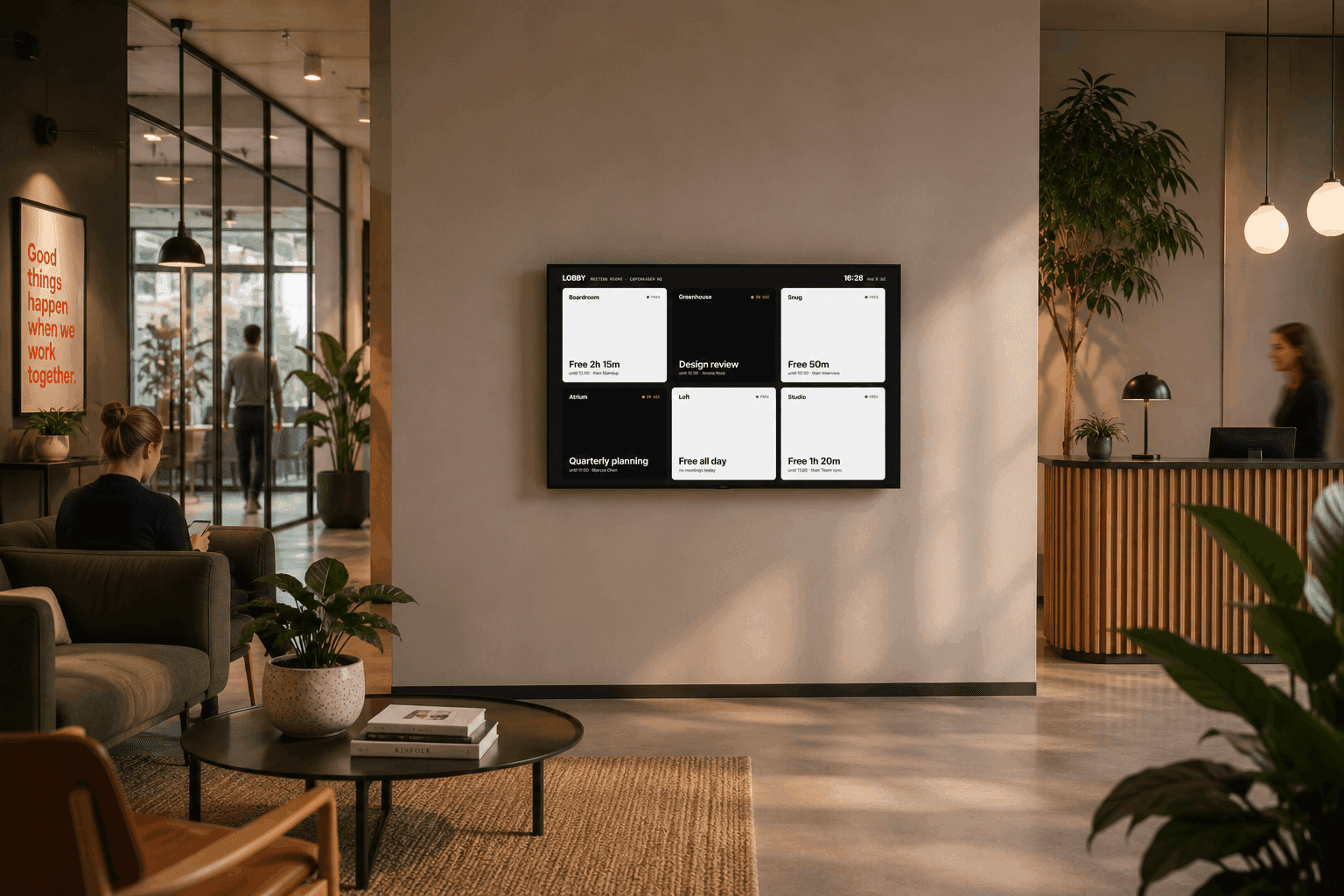
A door panel covers one room. A board covers the whole floor: every room on one screen in the lobby, the kitchen or the corridor, with busy rooms dark and free rooms light, so nobody has to walk the loop to find a seat.
The board is ordinary digital signage on any TV you already have. You can arrange it the way your floor actually reads, grouped by wing or laid out to match the floor plan. A board counts as one display on your plan.
Most vendors sell the overview screen as a separate licence. Boards are included on every Lobby plan, free tier included.
Hardware
Run your meeting room display on e-ink, a tablet, or a screen you already own
Every display is also a secure URL, so any browser can be a meeting room display. Lobby does not sell hardware bundles and does not mark up devices. Pick whatever suits each room, and mixing them is normal.
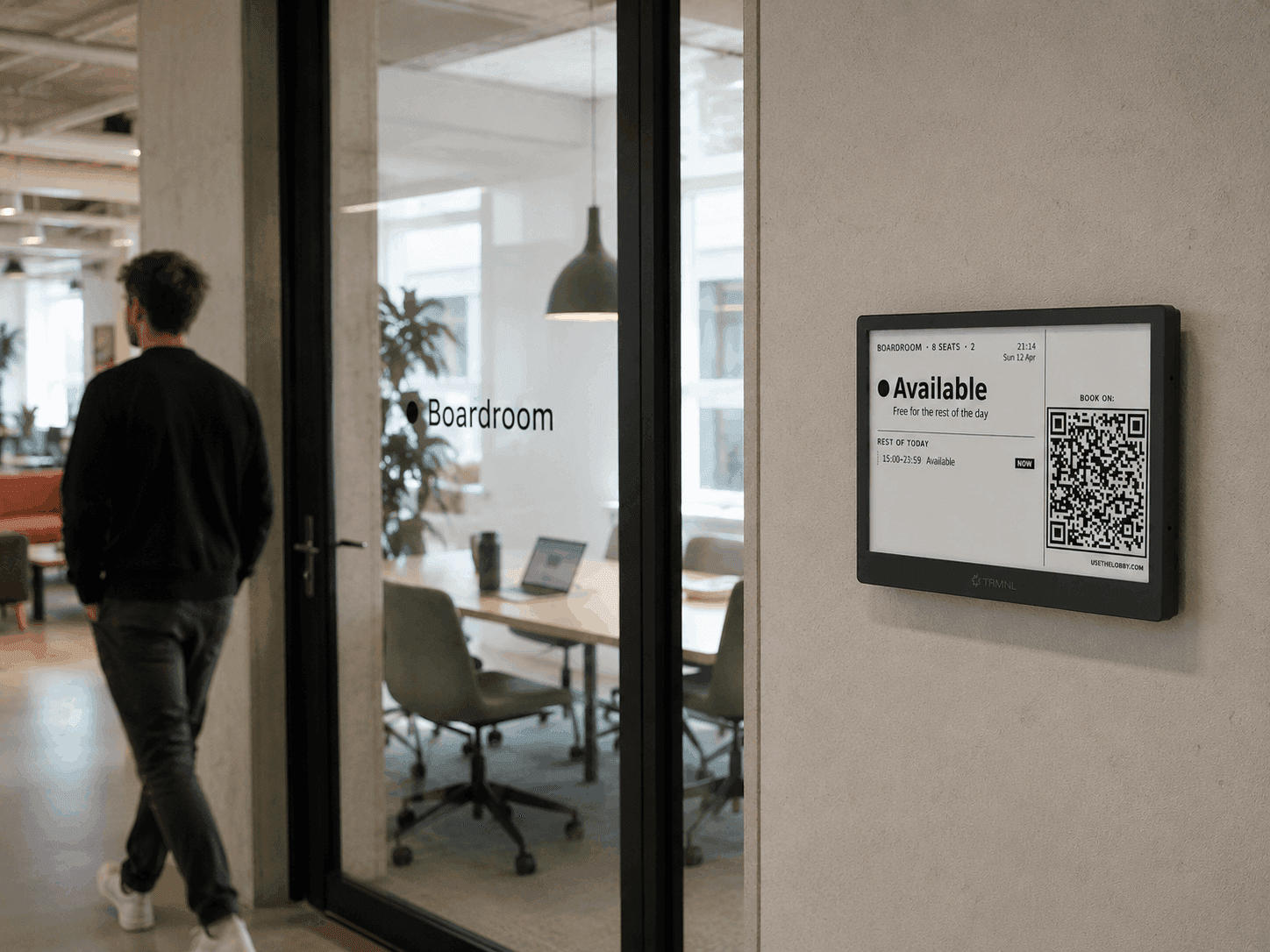
E-ink panel
Best for: doors with no power nearby. From $69 once, months of battery per charge, readable in direct sunlight.
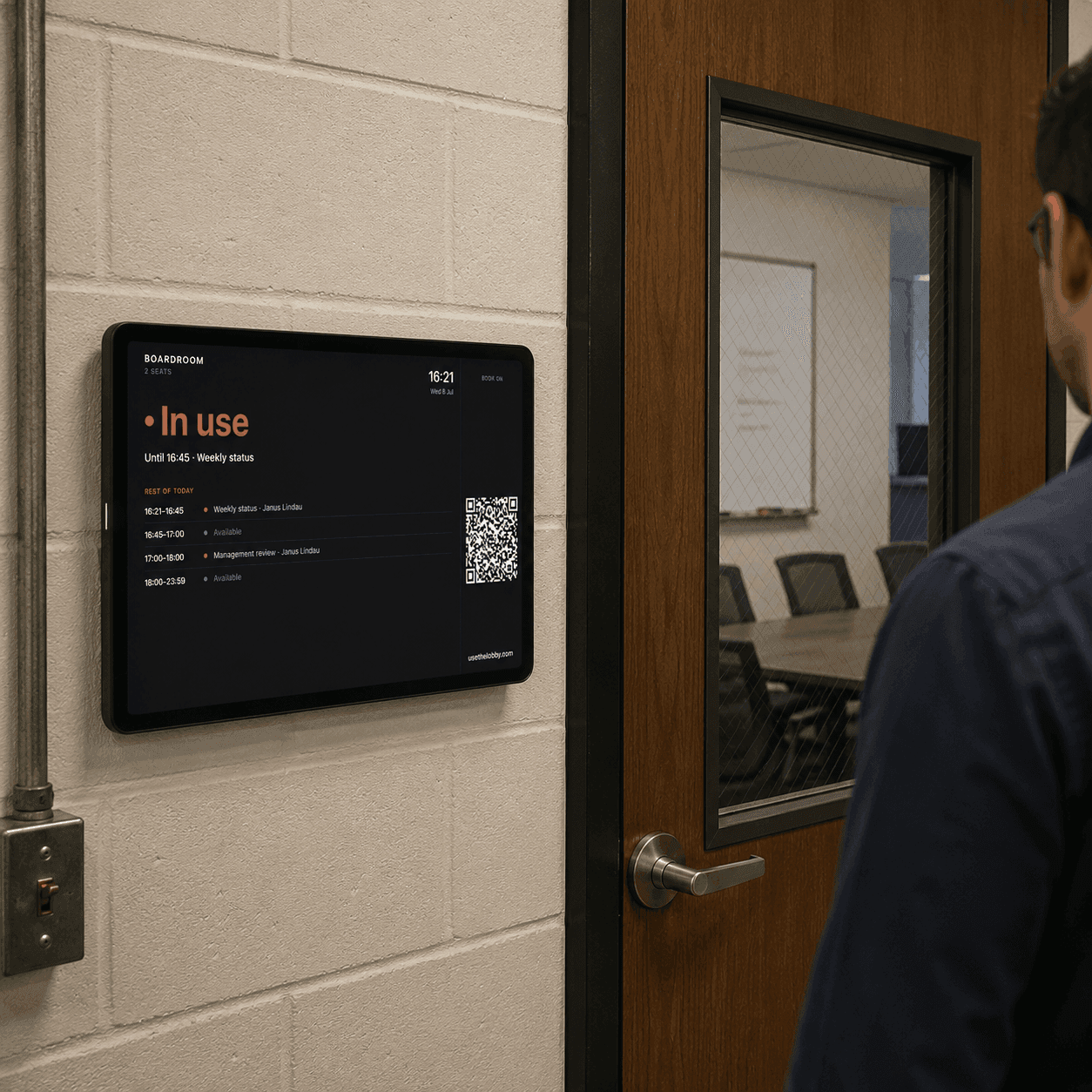
Tablet
Best for: glass mount installs and colour. Any iPad, Android tablet or Chromebook with a power run and a browser.
A screen you already own
Best for: boards and corridors. A smart TV, a kiosk or an old laptop, anything that opens a URL and stays awake.
| E-ink panel | Tablet | Screen you own | |
|---|---|---|---|
| Best for | Doors with no power | Glass-mounted colour | Boards and corridors |
| Device cost | From $69 once, owned outright | Your tablet | $0 |
| Power | Battery, months per charge | Mains | Mains |
| Display | 7.5″ monochrome | Full colour | Full colour |
| Counts as | One display | One display | One display |
Setup
Live in ten minutes. No IT project.
Connect the calendar
Sign in with Google Workspace and grant read-only calendar access. Lobby reads your room resources; it never writes to anyone's personal calendar. About two minutes.
Pick your rooms
Choose which rooms get a display and name them the way the office names them, not the way IT named them. About three minutes.
Put it on a screen
Open the display URL on a tablet or TV, or pair the e-ink panel over Wi-Fi, then wall mount it by the door. About five minutes.
Pricing
What a meeting room display costs
Three plans, all flat rate, and you are never billed per display. Start free for up to three displays, go unlimited for $30 a month, or add branding and the Pro features for $60. The whole price list is right here on the page, not behind a demo request.
Priced the usual way, per room, per year, on top of a hardware bundle, ten rooms often runs $2,000 to $4,000 a year before anyone has booked a thing. Lobby stays the same whether you run three rooms or a hundred.
Free
$0
Up to 3 displays. Live room availability, QR-code booking and overview boards, synced to Google Workspace or Microsoft 365.
Start freeUnlimited
$30/month
Every room and screen in the building for one flat rate. Unlimited displays and boards, never charged per display and no surprise at renewal.
Go unlimitedPro Unlimited
Most popular$60/month
Everything in Unlimited, plus custom templates, your own logo, room feedback, the Slack /book command and 5-minute e-ink refresh.
Get started free →Prices shown are billed yearly, up front, which saves about 40% against paying month to month. Full plan detail and monthly rates on room display pricing.

I spent thousands on meeting-room displays.
Before building Lobby, I ran a mid-sized company. We were losing hours of work every week to meeting-room mix-ups. Double-bookings, standoffs in the hallway, meetings that couldn’t find a room.
So we bought a system. Thousands of dollars in hardware, then hundreds every month in subscriptions, just for a handful of meeting rooms.
It worked. But the pricing never made sense to me. The cost is almost the same for running 1 display or 100, so why should we pay so much more just for growing?
So I built Lobby. Use the screens you want. Connect the calendar you already have. Add as many displays as you need. One simple fee. Never per display or user.
Frequently asked questions
Yes. Lobby connects to Google Workspace with read-only calendar access. A virtual display on a tablet or TV reflects any change within about 30 seconds; an e-ink panel shows it on its next check-in. Microsoft 365 and Outlook work the same way.
Nothing from us, unless you want it. A 7.5-inch e-ink panel costs from $69, bought outright, with no markup from Lobby. Everything else runs in a browser.
Yes. Every display is also a secure URL. Open it on an iPad, an Android tablet, a smart TV, a Chromebook or an old laptop. A virtual display counts toward your plan exactly like a physical one.
Yes. Scanning the QR code on the screen opens the normal booking view in Google Calendar or Outlook, with that room already selected as the resource, so you book it the way you always do. To change a meeting that already exists, whether that means moving it, shortening it or cancelling it, you do that in the calendar rather than on the display.
About ten minutes. Connect the calendar, pick the rooms, open the display on a screen. There is no server to install and no ticket to raise.
Free for up to three displays. $30 a month flat for unlimited displays. No per-room licence and no contact-sales gate.
Nothing per room. Lobby is flat-rate: free for up to three displays, then $30 a month for unlimited displays and boards, or $60 for Pro Unlimited. Priced the usual per-room, per-year way, ten rooms often runs $2,000 to $4,000 a year; Lobby stays the same whether you run three rooms or a hundred.
Yes. Sign in with Microsoft 365 and Lobby reads your Outlook and Exchange room mailboxes with read-only access, including rooms booked from Microsoft Teams. Changes reach a virtual display within about 30 seconds and an e-ink panel on its next check-in, exactly like Google Workspace.
Open the display’s secure URL in Safari on the iPad, then turn on Guided Access if you want it locked to that one screen. Mount the iPad by the door on mains power. Because every Lobby display is just a URL, there is no app to install from the App Store.
No. Lobby is a fully hosted service and there is no open-source edition. The trade-off is that there is no codebase to run or maintain: you connect a calendar and the displays work.
No. Lobby runs as a hosted service and cannot be self-hosted. The e-ink panel and any browser display talk to Lobby over outbound HTTPS only, so there is no on-premise server to install. That is deliberate: it keeps setup to about ten minutes and leaves nothing for IT to patch.
A room booking app is where people create and manage bookings — for Lobby that stays your calendar, whether Google Calendar, Outlook or Teams. A room display panel is the read-only screen outside the door that shows whether the room is free or busy right now. Lobby is the panel: it shows availability and hands booking back to the calendar you already use via the QR code, rather than adding a second booking system.
No. The e-ink panel is battery-powered and connects over Wi-Fi with outbound HTTPS only — no PoE, no data cabling, and months of battery per charge. Tablets and TVs need ordinary mains power and a browser, nothing more.
The e-ink panel keeps showing the last view it synced — e-ink holds its image with no power or connection — and reconnects on its own when Wi-Fi returns. A browser display on a tablet or TV shows the last loaded state until it reconnects. Nothing is booked or changed on the display itself, so a dropout never touches the real calendar.
More answers in the full FAQ.
Meeting-room chaos, finally at peace.
Three displays free. Ten minutes to live. Start before the kettle boils.
Get started free →